The Basics
AceLauncher is a powerful desktop dock built to streamline and enhance your PC experience. With its integrated browser and customizable interface, it provides fast, intuitive access to your favorite apps and essential tools. Below is a quick summary of the key settings you can control within AceLauncher.
How to open the AceLauncher dock when it is not visible
AceLauncher Browser
AceLauncher Browser is pre-pinned to your dock for quick and convenient web access. When you click the AceLauncher icon, it opens the browser if it isn't already running or launches a new tab if it is, giving you instant access to search the web anytime with just one click.
AceLauncher Apps and Quick Links
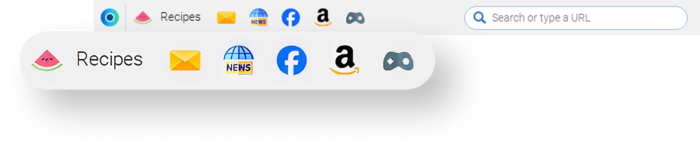
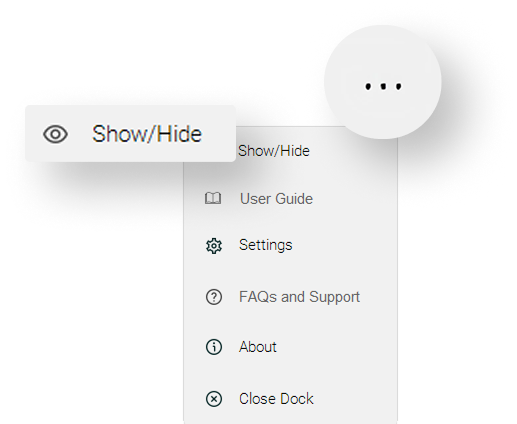
This section lets you pin apps and quick link shortcuts to the AceLauncher dock for instant access to your favorite websites and tools. To manage what appears on the dock, click the three-dot button at the end of the dock and select Show/Hide from the dropdown menu to pin or remove items.
How to pin and unpin Apps and Quick Links Take a closer look at AceLauncher Apps
Search Bar
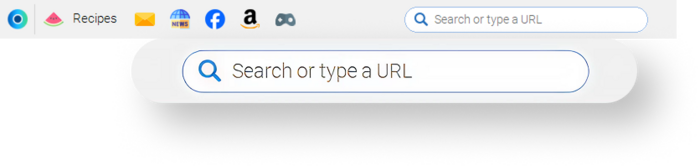
The search bar lets you quickly find what you need directly from your desktop. You can enter keywords to search the web or type a full website address to go straight to a site.
To use the search bar:
Click the search bar.
Type keywords related to what you want to find, or enter a full web address.
As you type, AceLauncher may display suggested keywords or websites based on popular searches and your previous activity. You can click any suggestion to open it quickly.
When you are ready, press Enter on your keyboard to open the results in the AceLauncher browser.
How to change Search Engine
How to clear your search and browsing history
AceLauncher Tools
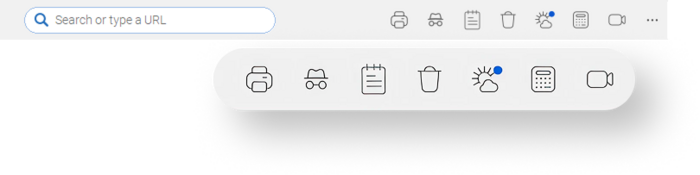
We looked at the tasks and features people use most often on their computers and realized they are not always easy to access. That is why we created AceLauncher Tools to bring them together in one convenient place and make everyday tasks faster and more productive.
How to pin and unpin Tools
Take a closer look at AceLauncher Tools
Three-dot Menu
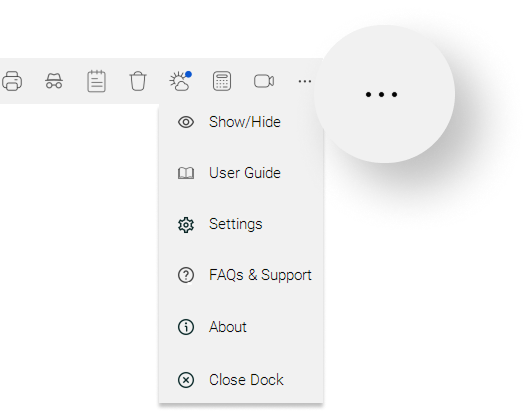
The three dot menu provides access to several options:
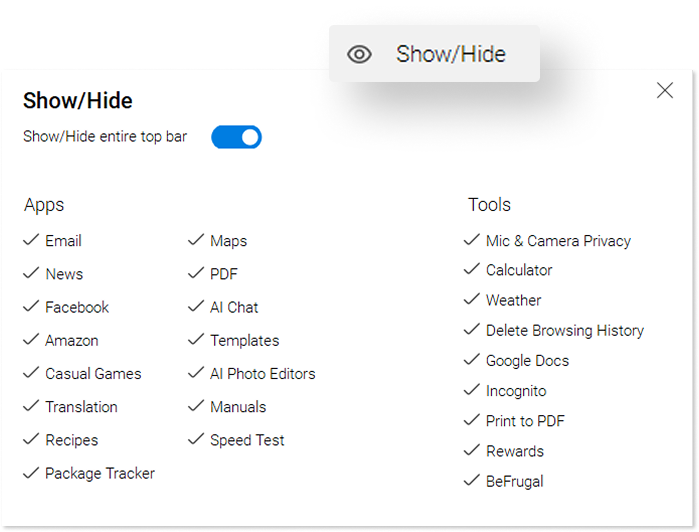
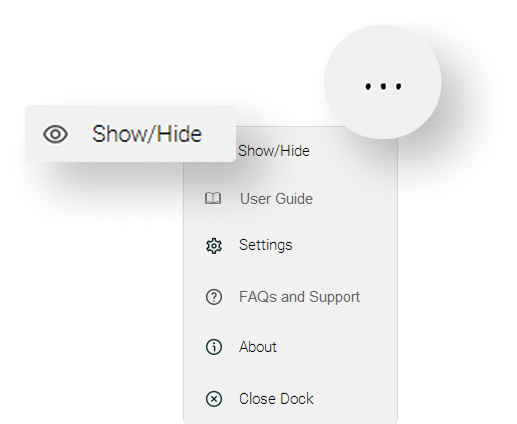
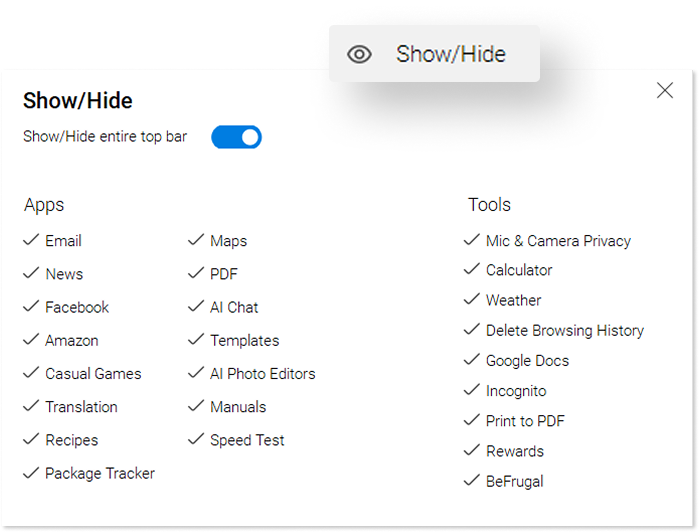
Show/Hide lets you customize what appears on the AceLauncher dock. Items with a check mark are currently visible. Click any item to hide it from the dock. Click it again in the menu to make it visible again.
User Guide opens the guide you are reading now and provides a detailed overview of AceLauncher features and functionality.
Settings opens the Settings panel where you can adjust AceLauncher preferences.
FAQs and Support opens the FAQs page, where you can also find a Contact Us link for additional questions, feedback, or assistance.
About displays the version of AceLauncher you are using and provides links to the End User License Agreement, Privacy Policy, uninstall instructions, and FAQs and Support.
Close Dock closes the AceLauncher dock.
Settings Overview
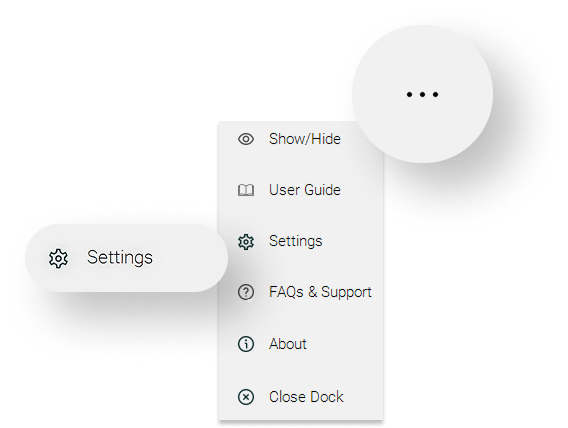
To open AceLauncher Settings, go to the AceLauncher dock at the top of your desktop. Click the three horizontal dots in the upper-right corner of the dock. From the dropdown menu, select Settings next to the gear icon to open the Settings panel.
You can access all AceLauncher dock settings from this menu:
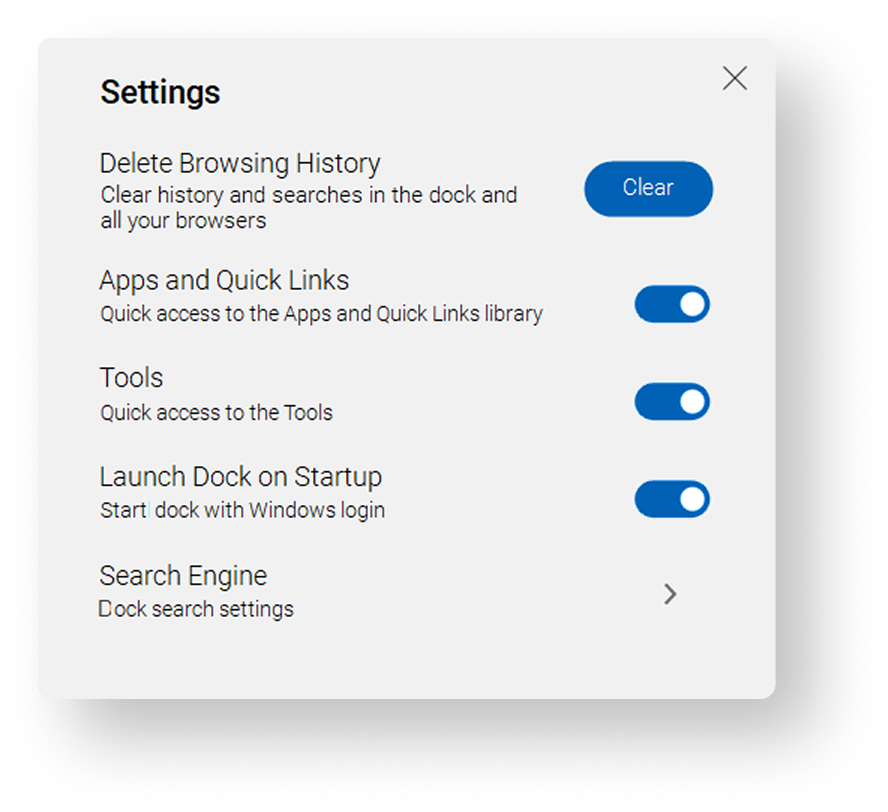
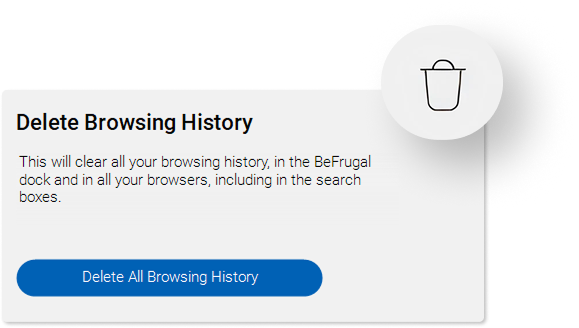
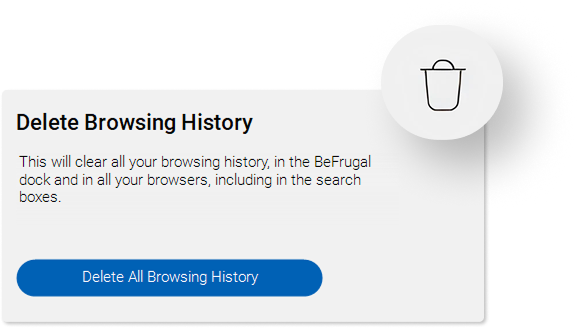
Delete Browsing History
clears your search and browsing history from the dock and all of your browsers. Before the history is removed, you will see several confirmation warnings to help prevent accidental deletionApps and Quick Links
option lets you hide all AceLauncher Apps and Quick Links at once if you prefer a cleaner, less cluttered dock. You can also show or hide individual AceLauncher Apps and Quick Links by clicking the three dot button at the end of the dock and selecting Show/Hide menu from the dropdown menu to pin or remove items.How to pin and unpin Apps and Quick Links
Take a closer look at AceLauncher Apps
Tools
option, similar to Apps and Quick Links, allows you to hide all AceLauncher Tools from the dock at once if you prefer a simpler and more minimal layout. If you want more control, you can also manage tools individually by clicking the three dot button at the end of the dock and selecting Show/Hide to add or remove specific items.How to pin and unpin Tools
Take a closer look at AceLauncher Tools
Launch AceLauncher Dock on Startup
When this option is enabled, the AceLauncher dock appears at the top of your desktop each time you sign in to Windows. If you prefer a cleaner and faster startup, you can turn this option off and open the dock only when needed using the shortcut icon on your desktop.How to open the dock when it is not visible
Search Engine
The dock’s search bar uses the default search engine selected in the AceLauncher browser settings. Any search made from the dock search bar will use the same search provider as the browser, such as Google, Bing, Yahoo, DuckDuckGo, or Yandex.To change the dock search engine, update the default search engine in the AceLauncher browser.
AceLauncher Manuals
To find product manuals:
Enter the brand in the Brand text box and the model name or number in the Model text box.
Press Enter on your keyboard or click the Search Manuals button.
AceLauncher will search available manuals and display results or suggest other sources online.
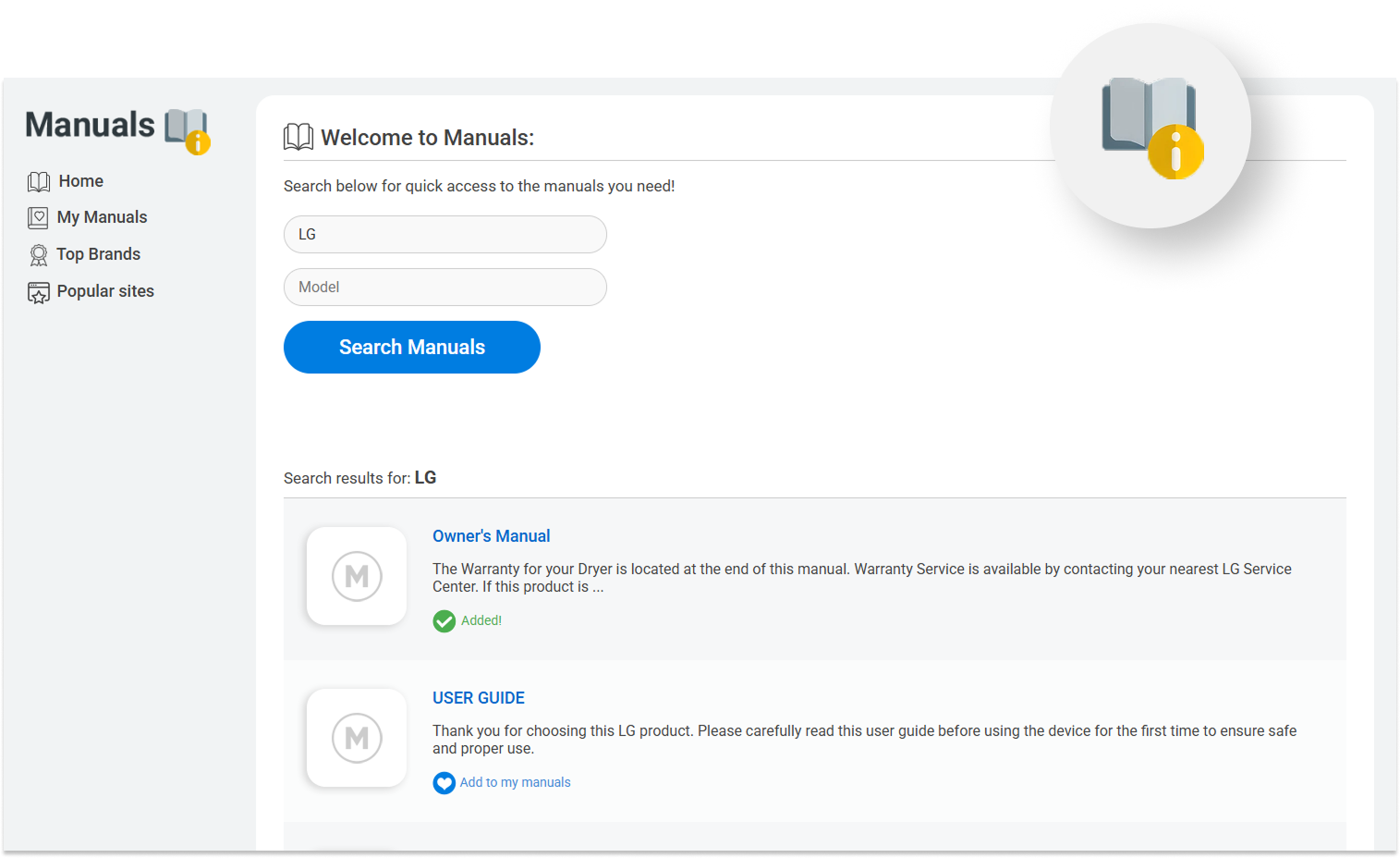
Note: You only need to fill in one of the text boxes for AceLauncher to perform a search.
You can save a manual by clicking the heart icon next to the desired manual on the results screen. All saved manuals can be found under the My Manuals tab on the left side of the screen.
You can also discover more manuals by browsing Top Brands available under the the left side of the screen or visiting External Online Sources.
AceLauncher Recipes
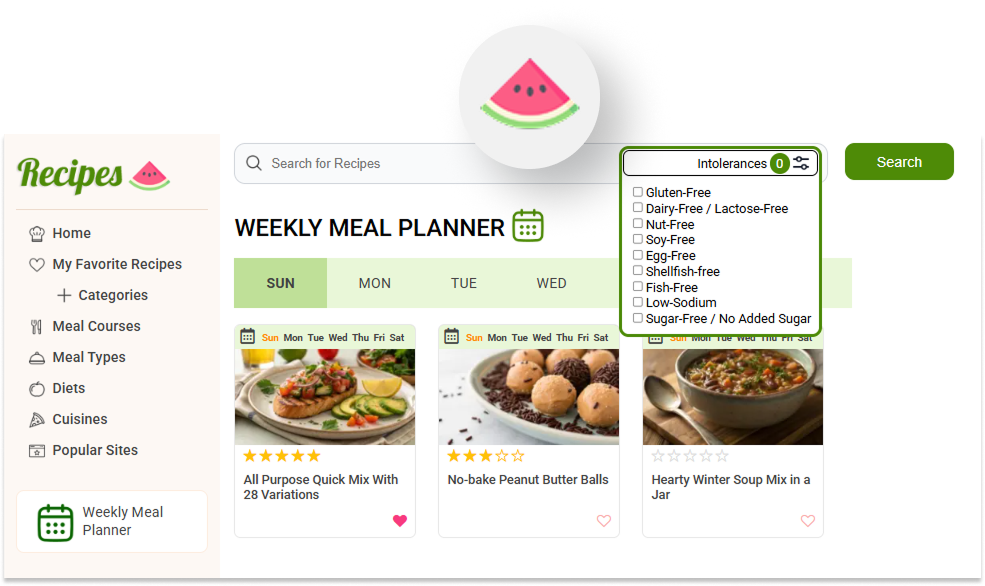
The Recipes app helps you quickly find and explore great recipes whenever you need cooking inspiration. Whether you are making a weekend breakfast, planning a summer barbecue, or preparing meals for holidays and family gatherings, the Recipes app makes it easy to discover dishes in one convenient place.
Click the watermelon icon on the top left of the dock to open the app. You can browse recipes by course such as soup, appetizer, or main dish; by meal type like breakfast, comfort food, holiday meals, or picnic dishes; by cuisines from around the world; or by dietary preferences. You can also quickly search by entering a dish name or ingredients in the built-in search bar to find something you can cook using the ingredients you already have in your fridge.
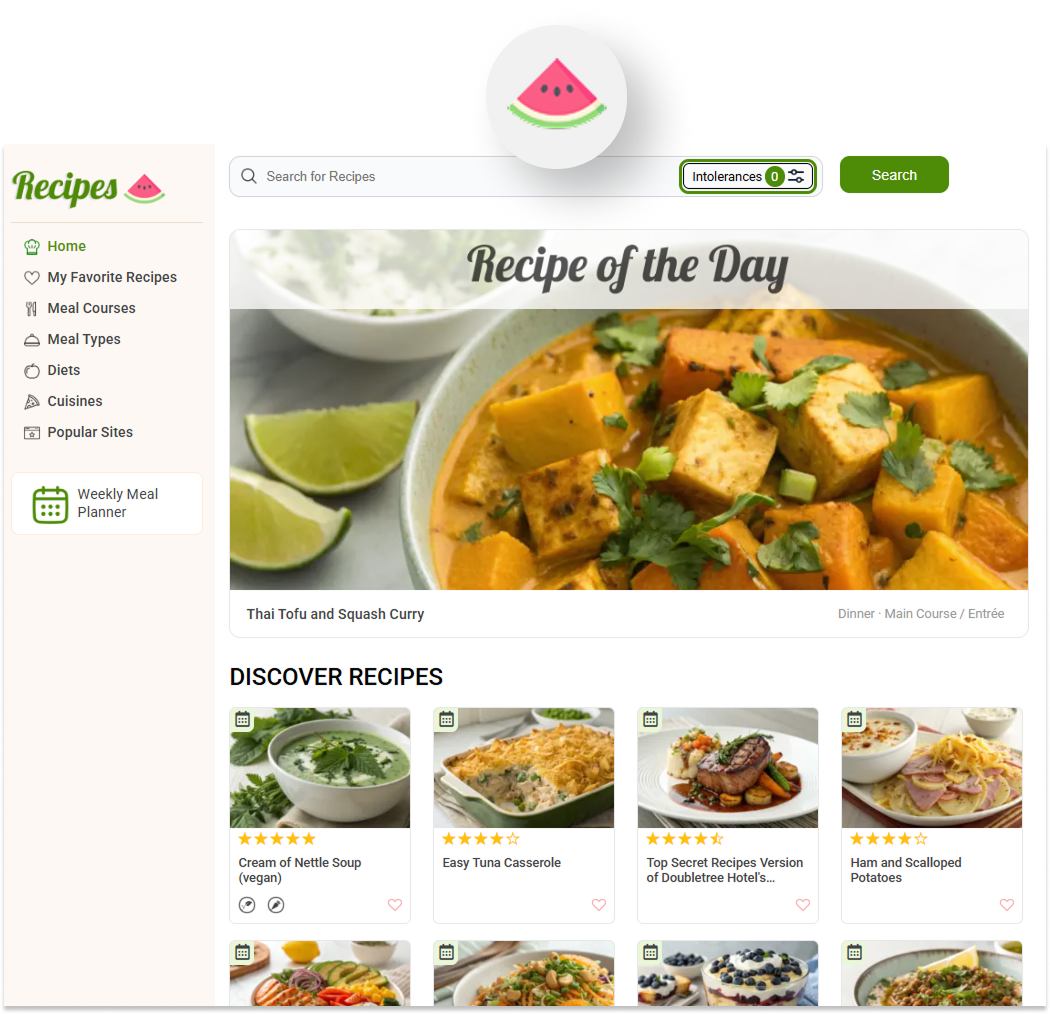
Recipes can be saved to your Favorite Recipes folder or added to the Weekly Meal Planner to help you plan meals in advance and make grocery shopping faster and more efficient. Each recipe can also be printed, and you can enable the Keep Screen On option so the recipe stays visible while you cook.
Be sure to explore the Popular Sites tab as well, where you will find a curated list of top recipe websites including Allrecipes, Food Network, Epicurious, Food.com, and Martha Stewart.
AceLauncher Package Tracker
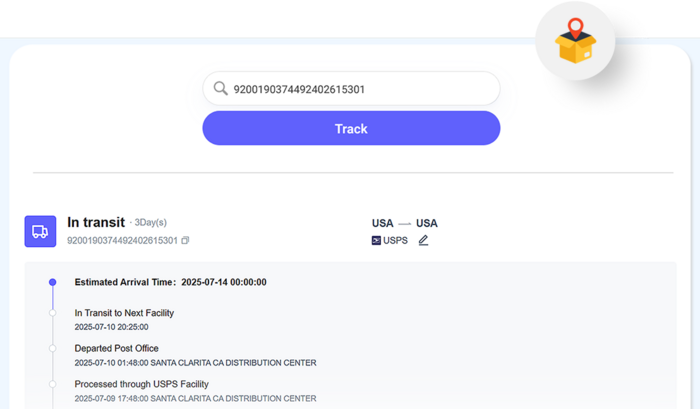
The Package Tracker helps you stay updated on your deliveries without visiting multiple carrier websites. It brings tracking information into one convenient place so you can easily check the progress of your shipments.
Just enter a tracking number to view the latest status of your package, including shipment updates and estimated delivery details. The app makes it simple to monitor orders and know when your package is on the way or arriving soon.
Whether you are expecting an online order, an important delivery, or a gift, the Package Tracker app provides a quick and convenient way to follow your shipments.
AceLauncher PDF Manager
The PDF Manager app gives you quick access to tools for converting and working with PDF files. With the AceLauncher PDF Manager, you can easily convert files to and from PDF format in seconds, including Word documents, PowerPoint presentations, text files, and many other common formats. You can also convert files to and from DOC format for easy editing.
The app supports a wide range of file types. You can convert files such as DOC, DOCX, DOCM, ODT, RTF, TXT, PPT, PPTX, PPS, PPSX, JPG, JPEG, PNG, GIF, BMP, TIFF, XLS, and XLSX to PDF. You can also convert PDF, ODT, PPT, PPTX, PPS, PPSX, RTF, TXT, XLS, and XLSX files into DOC format.
It works with many types of PDFs, including software generated PDFs, scanned documents, and fillable forms. There are no limits on the number of files you can convert, and your files are not stored online, helping keep sensitive information private.
AceLauncher Print
The Print button on the AceLauncher dock makes it easy to print documents, images, and web pages. With a single click, it creates a PDF of everything displayed in the active tab of the AceLauncher browser exactly as you see it on the screen. If the AceLauncher browser is closed, it will open and prompt you to visit the page you want to print.
If you want to use the standard Windows print options, click the print icon in the top right corner of the AceLauncher browser instead of using the dock button.
Incognito Browsing Mode
Enables private browsing. When turned on, your browsing activity is not saved to your browser history. Pages you visit, searches you make, and form data will not be stored on your computer after the browser is closed.
Google Docs
Click the Google Docs button to quickly open Google Docs in your browser and start creating or editing documents. It gives you fast access to your files so you can write, collaborate, and manage documents online from anywhere.
On the Google Docs page, use the Main menu at the top-left to switch between Docs, Sheets, Slides, Vids, and Forms.
Delete Browsing History
The Delete Browsing History tool looks like a trash bin icon on the right side of the dock.
Clicking this icon will delete your search and browsing history from the AceLauncher dock and from all your browsers on the computer.
Because this is a deep clean option, you will see multiple confirmation dialogs to help prevent accidental deletion.
Acelauncher Weather
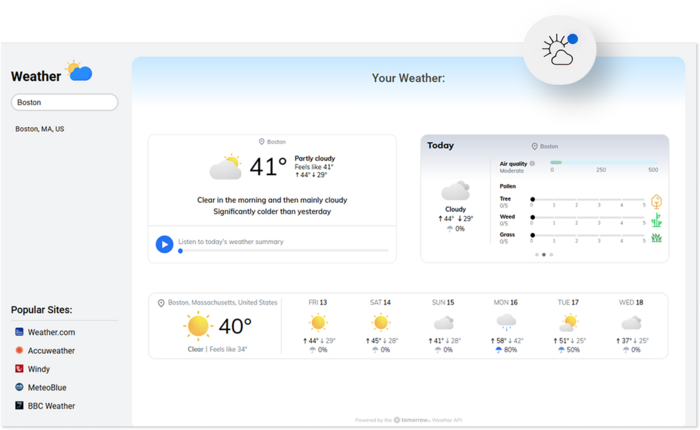
Click the Weather icon to see detailed weather conditions and air quality for your current location or switch to another location of your choice. Acelauncher Weather also provides quick links to popular weather websites for additional forecasts and updates.
Calculator
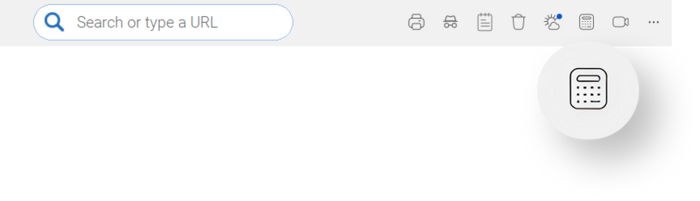
Click the Calculator button to quickly open a Windows calculator on your computer. It provides a convenient way to perform everyday calculations without opening additional apps, making it easy to handle basic math, conversions, and other quick calculations while you work.
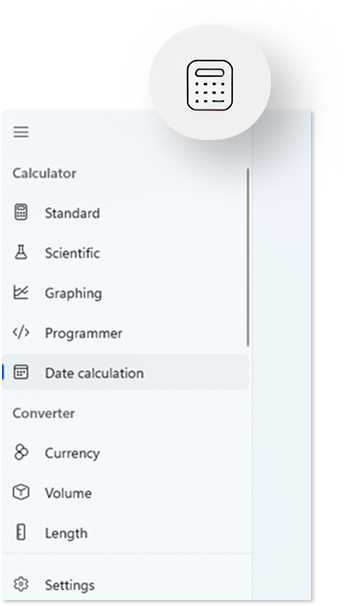
Use the menu in the top left corner to switch between different modes such as Standard, Scientific, Graphing, Programmer, and Date Calculation. You can also access a variety of built in converters, including Currency, Volume, and Length, to quickly convert common units.
Microphone & Camera Privacy
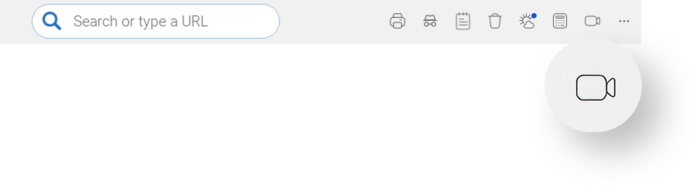
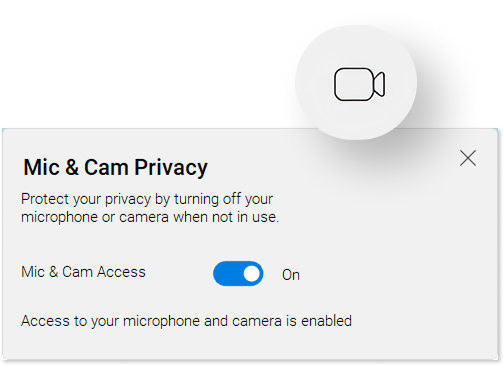
Protect your privacy by controlling access to your computer’s microphone and camera. This button lets you quickly turn microphone and camera access on or off across your operating system, helping prevent apps from using them without your knowledge.
To manage these settings, click the Microphone and Camera Privacy icon on the AceLauncher dock and use the toggle to enable or disable access.
When access is turned off, the camera icon on the dock will change to show that the microphone and camera are blocked.
Note: If a program on your computer is currently using your microphone or camera, you will not be able to disable access immediately. Please close the program that is using the microphone or camera, then switch the toggle off.
How to Pin and Unpin Apps and Quick Links
The AceLauncher dock provides quick access to Apps and Quick Links that simplify everyday tasks on your computer. All AceLauncher Apps and Quick Links are free to use.
By default, all available AceLauncher Apps and Quick Links are pre-pinned and visible when you install the software. The dock is fully customizable, so you can remove items you don’t use or add the ones you access most often.
To pin or unpin Apps and Quick Links:
Click the three-dot menu (the last button on the dock, located at the top-right of your screen).
Select Show/Hide Menu.
A list of all available Apps and Quick Links will appear. Items that are currently pinned will have a check mark next to them.
To unpin an App or Quick Link, click its name. The check mark will disappear and the item will be removed from the dock.
To pin it again, click the name once more and it will reappear on the dock.
How to open the AceLauncher dock when it is not visible
Take a closer look at AceLauncher Apps
How to Pin and Tools
We looked at the tasks and features people use most often on their computers and noticed that many of them are not easy to access. To make things simpler and more productive, we added Tools to AceLauncher. All Tools are free and are located on the right side of the dock.
By default, all available AceLauncher Tools are pre-pinned and visible when you install the software. The dock is fully customizable, so you can remove the Tools you do not use or add the ones you access most often.
To pin or unpin Tools:
Click the three-dot menu (the last button on the dock, located at the top-right of your screen).
Select Show/Hide Menu.
A list of all available Tools will appear. Items that are currently pinned will have a check mark next to them.
To unpin a Tool, click its name. The check mark will disappear and the Tool will be removed from the dock.
To pin it again, click the name once more and it will reappear on the dock.
How to open the AceLauncher dock when it is not visible
Take a closer look at AceLauncher Tools
Change Search Engine
The search engine used in the dock is controlled by the default search engine setting in the AceLauncher browser.
How to change the default search engine in the browser:
Open the AceLauncher browser.
Click the three-dot menu icon in the top-right corner.
Select Settings.
Go to Search engine.
Find Search engine used in the address bar.
Click Change.
Select your preferred search engine.
Close Settings.
Your dock search engine will now match the default search engine selected in the AceLauncher browser.
Clear Your Search and Browsing History
One of the AceLauncher Tools is called Delete Browsing History. It looks like a trash bin icon on the right side of the dock.
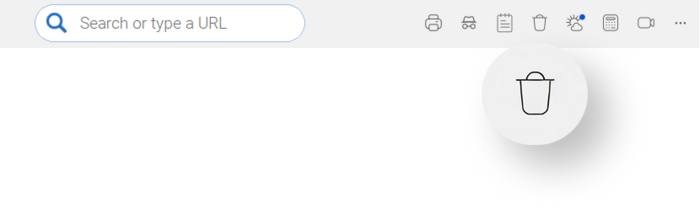
Clicking this icon will delete your search and browsing history from the AceLauncher dock and from all your browsers on the computer.
Because this is a deep clean option, you will see multiple confirmation dialogs to help prevent accidental deletion.
Open the AceLauncher Dock when it is not visible
If you do not see the AceLauncher dock pinned to the top of your screen, you can launch it by clicking the desktop shortcut.
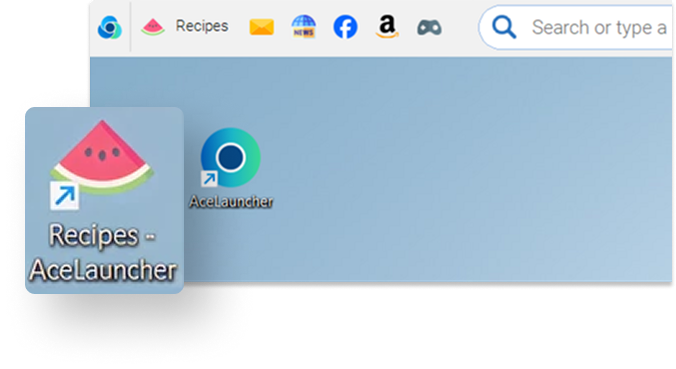
Depending on the featured app included with your download, the shortcut name and icon may appear as one of the AceLauncher Apps. For example, if you downloaded AceLauncher Recipes, look for the Recipes - AceLauncher icon on your desktop, which looks like a watermelon. Double-click it to open the dock.
Control Browser Startup Behavior
You can choose whether the AceLauncher browser opens automatically when you sign in to Windows.
Open the AceLauncher browser.
Click the three-dot menu and select Settings.
Select System from the menu on the left.
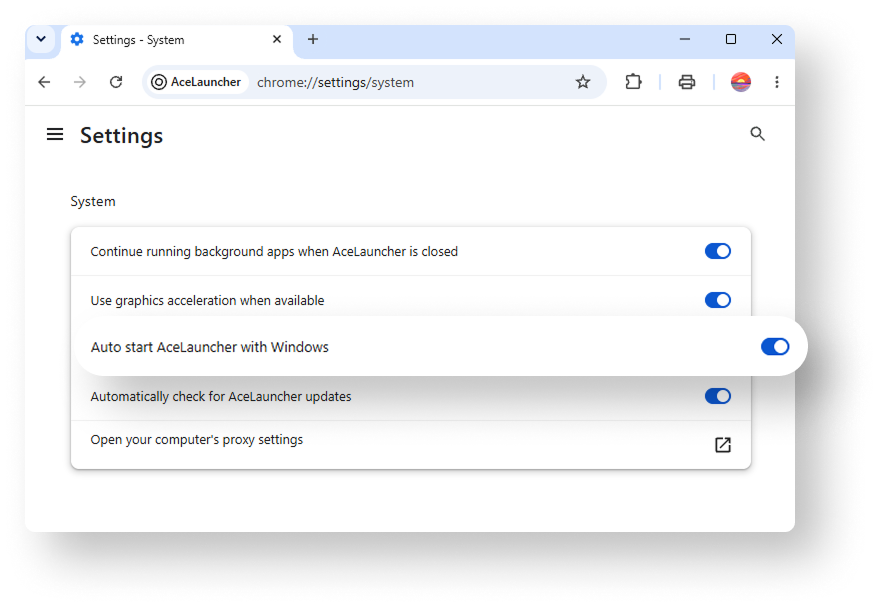
Use the Auto start AceLauncher with Windows toggle to control the setting:
On: AceLauncher starts automatically when you sign in to Windows.
Off: AceLauncher must be opened manually.